Mark up screenshots
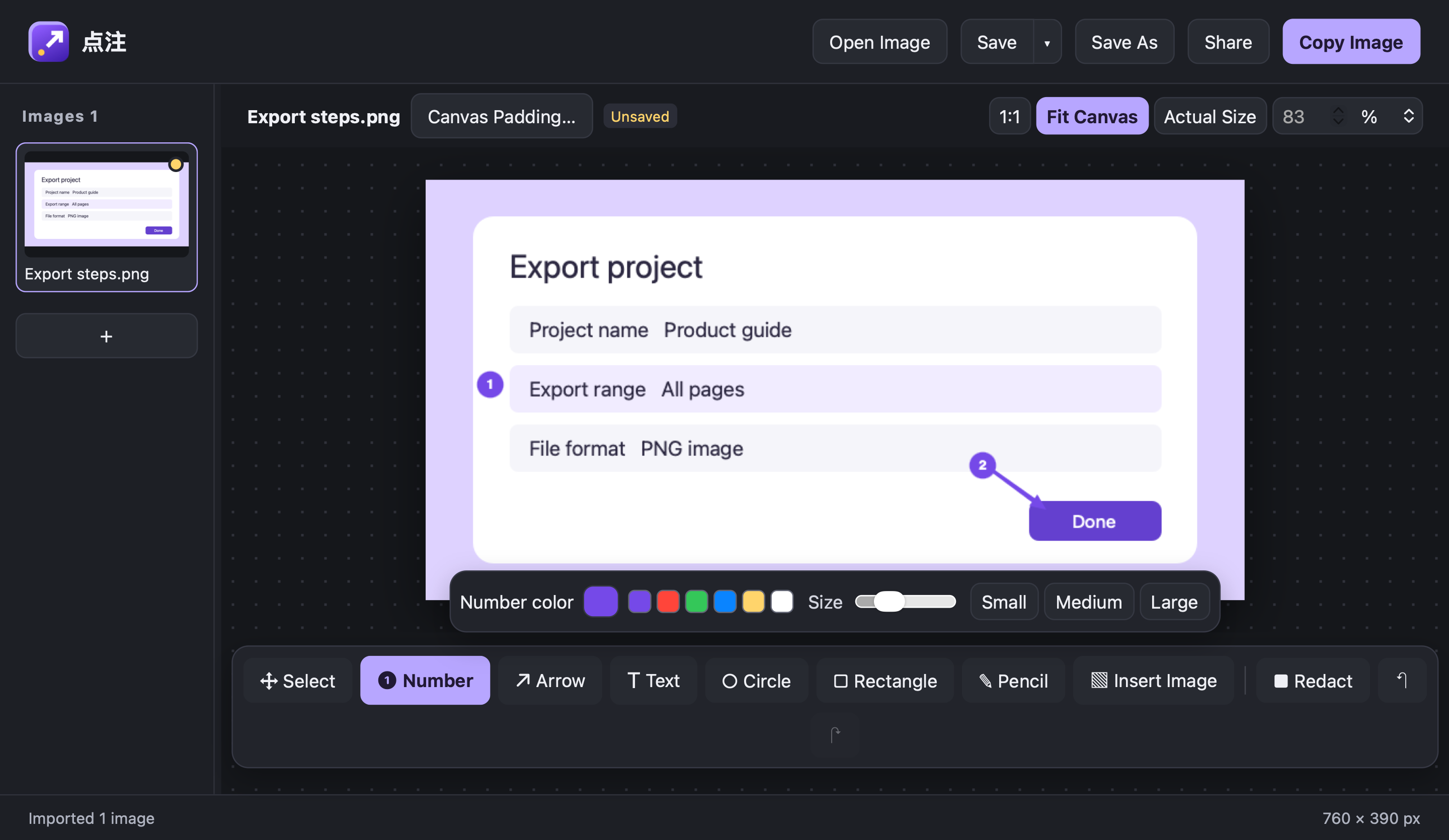
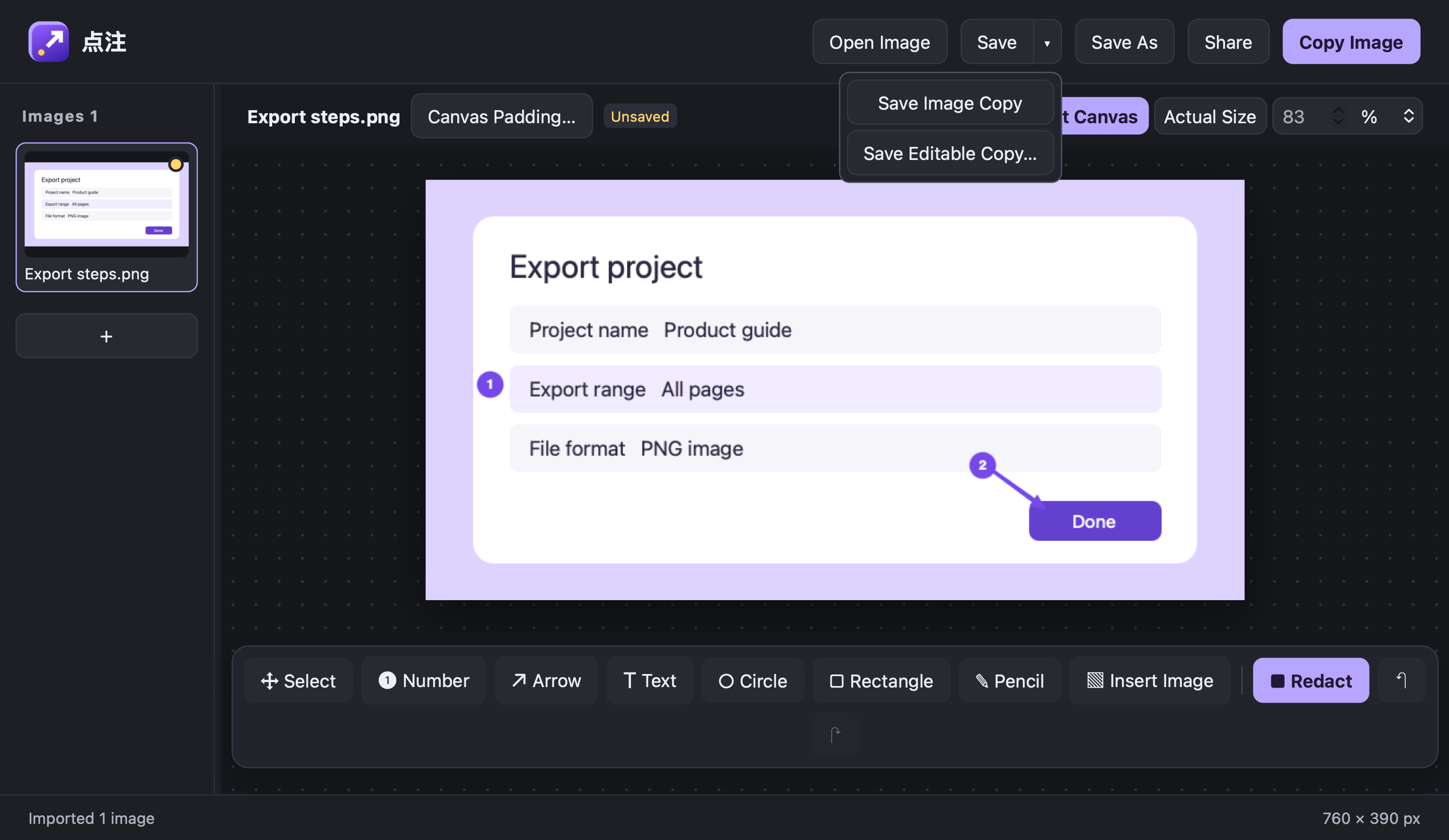
Number each step automatically, point to the right spot with arrows, and add text where it helps. Use circles, rectangles, or freehand drawing to highlight details.
 Dianzhu
Image annotation for macOS
Use numbers for steps, arrows for details, and text for context. Extend the canvas when you need more room, and work through multiple screenshots in one window.
Download for Mac
Features
Number each step automatically, point to the right spot with arrows, and add text where it helps. Use circles, rectangles, or freehand drawing to highlight details.
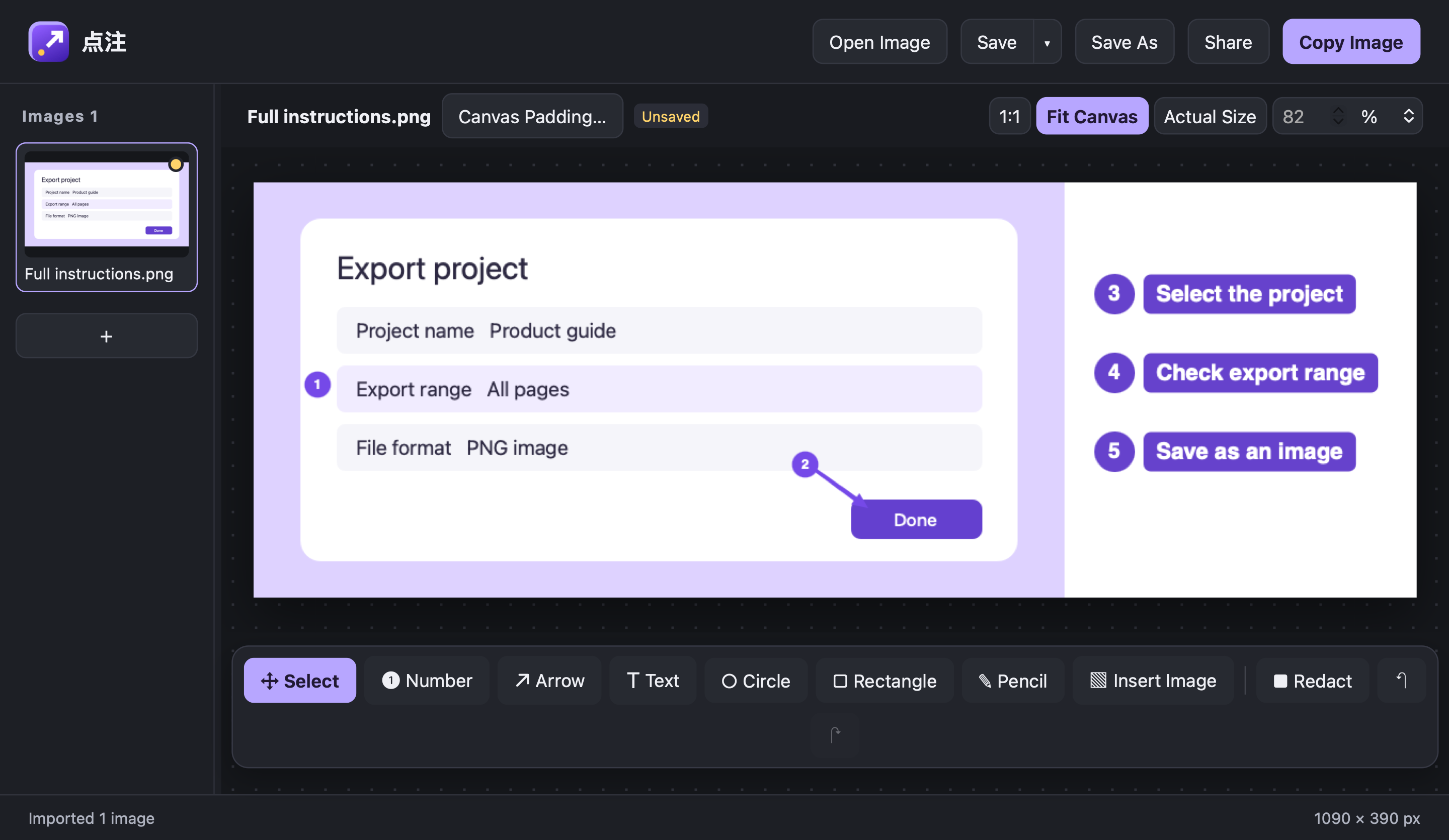
Add space around the original image and arrange notes beside it. Export the screenshot and the full set of instructions together as one image.
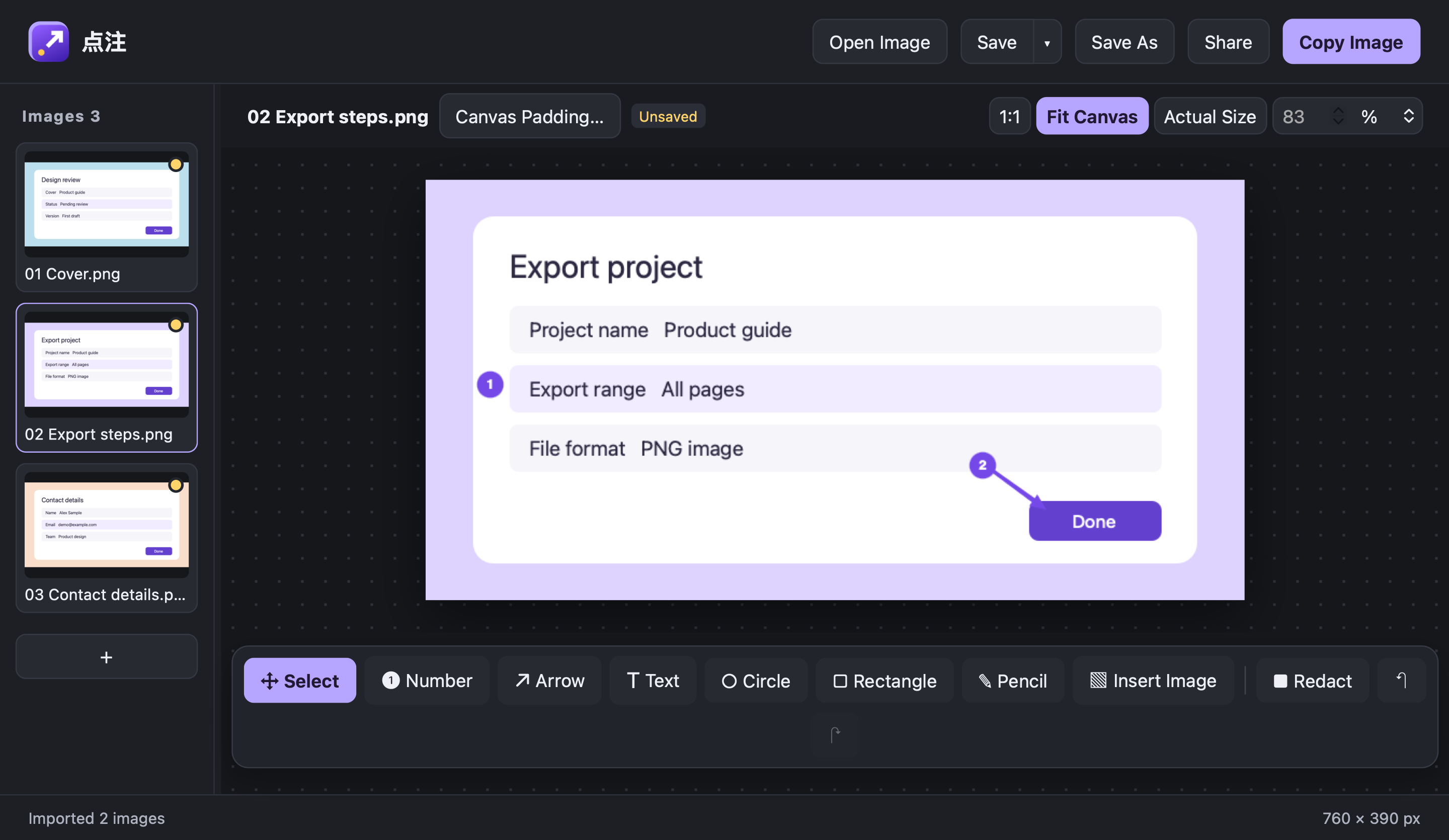
Open several screenshots together and switch between them using the sidebar thumbnails. Each image keeps its own annotations. When you’re done, export the selected images in one batch.
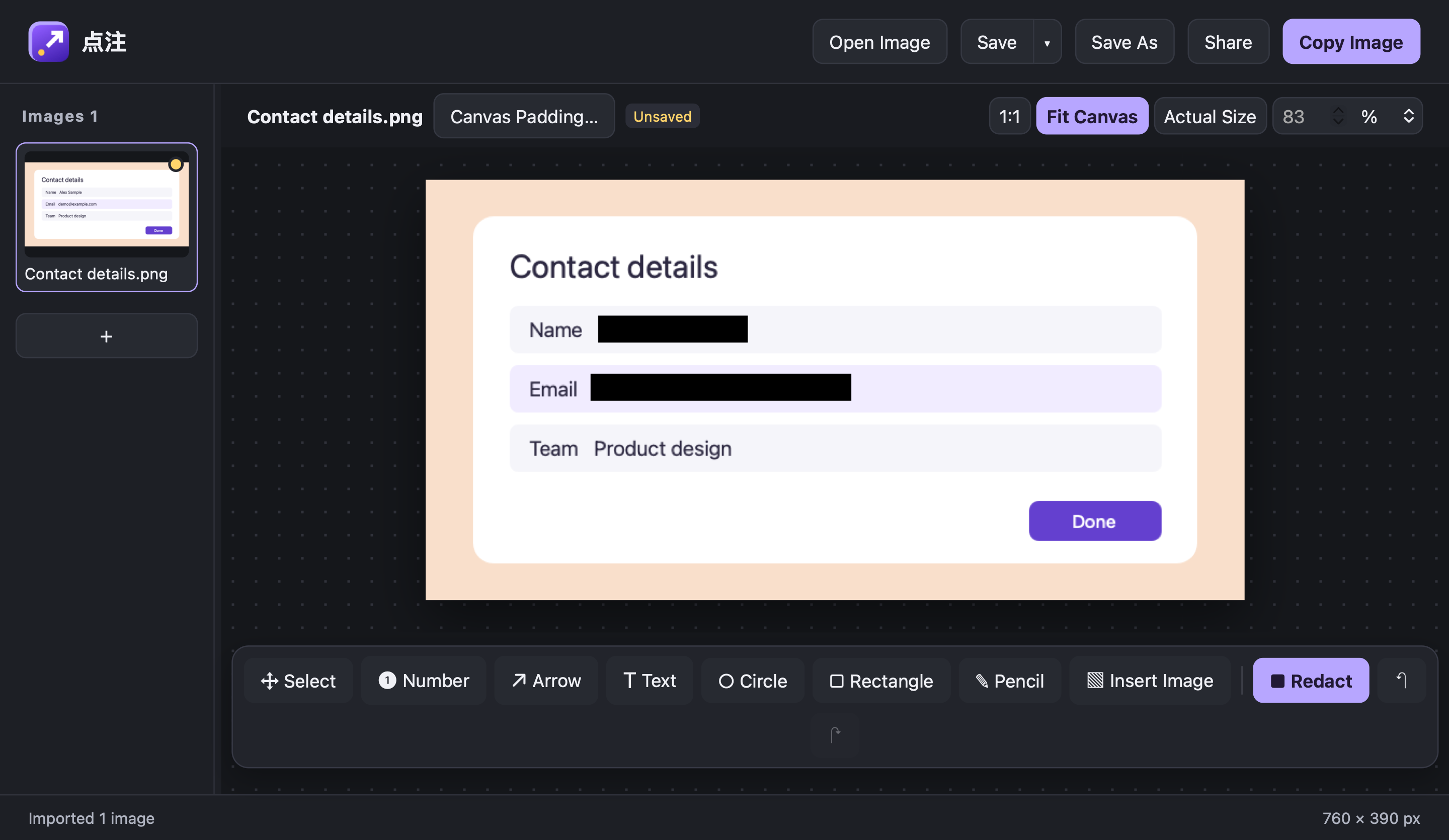
Cover names, email addresses, or IDs with a solid block, then copy or export the image for a chat or document.
Copy the annotated image to the clipboard or save it as an image file. Save a Dianzhu project to reopen it later and adjust your annotations.
Version 0.1.0 · macOS · Apple silicon
Download for macOSUnzip the download and move Dianzhu (点注) to your Applications folder.